Steps to creating a website

Website is a crucial element for a brand to reach a greater height. While many of you might be a beginner and hence mightn’t know how to create a website. Well! below are some of the steps to create a website.

Select your website platform

always select the correct website platform for your site. Take a detailed look at the type of website you’re creating, whether it is for e-commerce, displaying artwork, etc. Some of the website platforms are WordPress, Shopify, Wix, etc. However, in 2022 WordPress is the most commonly used and popular website-building platform. It is free and highly customizable, and also user-friendly. WordPress makes your site responsive and works great on every device.

you can learn about the reasons to use WordPress here

Research and find a domain name

A domain name is as significant as content in a website for a website. It affects how easily and conveniently your audience can find your site. A domain name is a part of your URL. It assists in maintaining brand consistency. Furthermore, it helps your customers find you online and prevents confusion between your brand and another similar brand. research and find the perfect domain name that matches your nature and type of brand.

it is better to use your business name for your website domain name, or other online platforms too. Also, make sure to check the availability of your chosen domain name on websites that sell the domain names.

register your domain name

visit the web hosting company’s website to register your domain name. select the plan or package according to your requirements. Add your domain name in the requested section and accordingly, it will take you to a page.

you can register your domain name on sites such as Namecheap, GoDaddy, google domain, etc.

Choose a web hosting service

for your website to be accessible on the internet, you need a hosting service by a web hosting company. there are several companies that provide secure and reliable web hosting services on their server. You are free to host your website with the same company with which you registered your domain name.

web hosting provides you with website space, databases, backups, website-building tools, plugins, etc according to your package.

Get connected to your domain name

after getting your domain get connected to it. Bluehost is a popular host that has agreed to provide a free domain name, and SSL certificate, along with a 60% discount on web hosting.

after you’ve finished registering your domain name, you need to update your DNS with the domain register with whom you purchased your domain name.

Install WordPress

next, install WordPress on your device. It is open-source software and a popular platform for building your website. It allows you to host and customise your website, blogs or online portfolios, stores etc. So, it is recommended to install WordPress to create a website.

Install WordPress, upload it to the hosting account and run the installation process. Installing WordPress is as simple as it sounds.

Add contact form

you might be thinking why do I need a contact form? But here’s an interesting thing, it provides you spam protection and also saves time. As you start your website you’ll get thousands of emails and hundreds of them might be spam emails. Hence, a contact form can stop almost all spam emails.

For this, you need to select the best WordPress contact form plugin and install it. Create a contact form from WPforms > all forms in your WordPress admin area, configure notifications, add it to a page, sidebar and you’re done!

Setup WordPress SEO

WordPress has numerous built-in SEO. However, there are other third-party plugins too. Yoast SEO is one of WordPress SEO which is a powerful tool that can assist you in making your site SEO-friendly easily and conveniently. Moreover, All in one SEO, W3 total cache, and Premium SEO pack fall under the category of best WordPress SEO responsible to boost your website traffic.

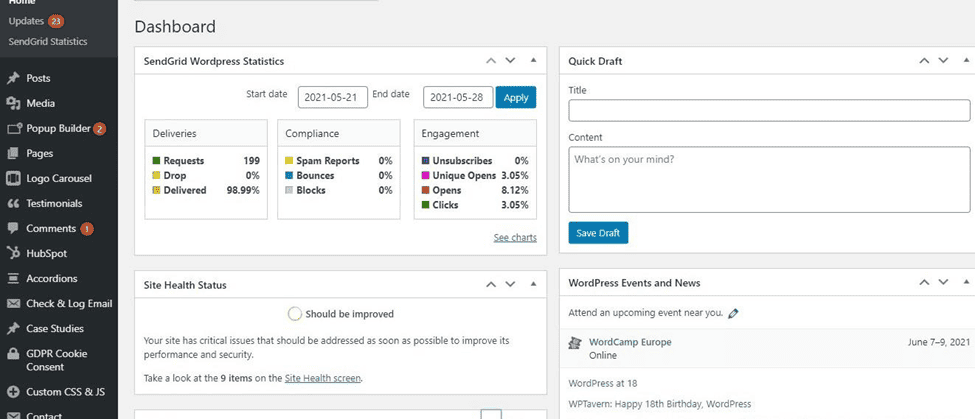
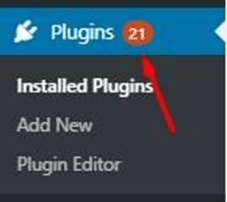
To install WordPress SEO, on the dashboard go to plugins, add new, type your desired SEO into the search bar and install it and activate it.

Install google analytics and webmaster

As your website goes live, you have to track your audiences to monitor the growth, trends and patterns. These are the power tools that is used to monitor the interaction of your site with google or any other search engines. It is believed to improve visibility and create reporting views. Further, it provides vital information of your site and is a must no matter what type of industry you have.

log in to your WordPress admin area and go to Settings » General page. Here, you can see your website’s URL in the site address field. Enter your correct website address in the Google webmaster tools setup wizard, and click on the ‘Continue’ button.

Install caching

caching in WordPress means creating a static version of your content and serving it to the visitors. caching is believed to improve the speed and performance of your website. Moreover, it helps to reduce the load on your hosting server.

WP Super Cache is a popular free cache plugin that generates static HTML files for your WordPress site. Go to Plugins > add new, search for your desired cache and click install and activate it.

Set up spam protection

Spam protection in WordPress provides security against login, registration, comments and content protection for your website. In simple terms, it helps to defeat WordPress spam users and prevents future registrations.

To set up spam protection visit plugins from the dashboard, click add new and search for spam protection. Find your required plugin, install it and activate it.

Change site title, tagline, WP address, and site address

After you’ve created your website update your user’s profile, change the site title, tagline, WP address site, address, permalinks, and other requirements. Log into the WordPress dashboard. Go to settings > General option and change or edit both the site title and tagline and other. And click on save.

Theme selection

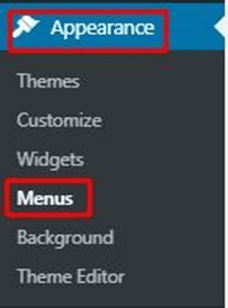
you surely like an attractive-looking website Don’t you? well, a theme in WordPress helps your site to look appealing and improves the look along with the performance of your website. To install the Theme in WordPress, navigate to appearance > Themes. on the themes page select add new and choose a theme. Click on Download and begin the installation process. And finally activate it

Add widgets

WordPress widgets add more content and features to your website. In simple terms, widgets are blocks of content that we can add to the site’s sidebar. It provides a way for users to customize your site. Footer and Header are the common widgets that are added to the site. Go to the WordPress dashboard, and click on appearance > widgets. You can either choose a widget or drag it to the sidebar or a destination.

plugin research and installation

Plugins are one of the most important elements of a website. Plugins add various new or existing functionality to your site and allow you to create any type of website including an e-commerce store using woocommerce or other plugins and portfolios, etc.

What you need to note is there are some plugins in WordPress that are free and some you have to pay for. Hence, you need to research properly, understand what type of plugins you need and accordingly install them.

Plugins activation(security plugins too.)

After you’ve installed the plugin make sure to activate the plugin. While you install your plugin like woocommerce, Yoast SEO, etc. make sure to install security plugins like Wordfence security, defender, etc. to protect your WordPress site from malware, hacking attempts, or other destructible acts.

Security plugins are important for your site because a hacked website can cause a huge loss of business revenue. Hence, after installing plugins activate them and also check if you have security plugins installed.

Add content(pages and posts)

contents are the most important element of your website. In the human body, the heart keeps you alive. similarly, content is the heart of the website as it is useless without content. To add content, in the WordPress admin dashboard Go to posts > add new.

Here you can add your content and finally update it. similarly to add pages, Click on Page > Add New. Add in your new content, including a Title. 

Check your website structure

Before you have your website go live, make sure to check its structure. Check the attributes, categories, permalinks, etc. Make sure to keep your website structure simple and always follow the hierarchy. Similarly, your site’s internal links and external links are vital to your website. Also, categorize your page according to the contents it contains. After you’ve created the content and finished with the structure, add the sitemap that’ll help to crawl over your content.

Improve the website’s appearance

Your site must look standard and professional in order to allow your viewers to stay on the site for a longer period of time. The first impression is the last impression. Therefore, customize your site, and make it presentable.

Along with the appearance make sure to improve the site’s speed, delete unused themes and plugins and control your spam comments to improve the site’s appearance.

customization of the website

Discover brand-new ideas and techniques to customize your site. To customize your site, on the WordPress dashboard of admin area appearance > themes.

create a custom homepage using Elementor which can be easily installed on your site by searching it in the plugins. change the font, use various features, and utilize available features to customize your site and make it user-friendly.

Add blogs/store

After you’re done with customization, add blogs or stores for your website. To start an e-commerce site you can add plugin Woocommerce from plugins to start the site and accordingly add your products.

To add blogs, posts > add new. similarly, to add products, on the admin dashboard products > add products. add title and description. select the type of product (simple, variable,…).

Check SSL/HTTPS

SSL and HTTPS are very important to keep the information confidential, secure connections, and prevent your information from being modified. How to check SSL/HTTPS?

go to your WordPress dashboard, then select Settings > General. Now, check if your WordPress Address and Site Address begin with “https://”. If not, change these URLs.

Launch your site

After all your website-related works have been completed including your contents, permalinks, attributes, pages, SSL checking, and customization. You’re all set to launch your website and make it live. However, make sure to check your security plugins and also takes notes of the glitches to repair them on time.

Improve SEO efforts

after your website goes live, to increase the organic traffic and improve your SEO. use appropriate tags, metatags, meta descriptions, alternative texts, etc. it is good to use Yoast SEO for your website as it helps you to optimize your content for both Google and visitors.

Set up website analytics

To monitor your site’s performance and to watch the improvements in your audiences and viewers, set up website analytics. According to reviews on the internet, it is good to install google analytics as it is reliable and beginner-friendly too.

Google Analytics is offered by Google and it tracks and reports website traffic. It is easy to set up and is easily understandable.

Create an official page for the audiences

It is always good to open an official business page on your website so that your viewers can easily contact you with suggestions or queries. It can also be used to promote your brand on the internet and increase the reach of the people. you can use social media platforms like Facebook, Instagram, Twitter, etc to promote your brand.

While you create a website make sure it is ADA compliant website. Don’t know what is ADA compliant website. Have a glance!

How to write an article?

Instructions for writing an article

An article must possess three features for it to be called a good article: suitable subject matter, proper arrangement & adequate power of expression. However. the expression varies according to the type of article you’re writing. every article should be divided into paragraphs & each heading should have at least one paragraph.

This document presents guides on writing articles. These are minimum requirements, you can add/edit on your own.

Each article should possess the following parts for a good article:-

First Paragraph:

Introduction of what you are about to write, if it’s a plugin, introduce the plugin, show the download link:-(https://wordpress.org/plugins/), etc, this should be in the first paragraph.

The first paragraph must be very brief and always arresting and pertinent to the subject.

As you’re writing about the plugin, you may write its short definition, examples of application areas, or a short proverb or general remark by someone who’s briefed regarding plugins.

Second Paragraph:

Show steps to download and install the plugin, with screenshots. The screenshots need to be in PNG file type, do not edit images in MS Paint or another application.

Images play an important role in making an article attractive. Hence, Subject related images should be used in the content to make the article look standard

This makes an article well constructed. Further, adding images of plugins or other files should be related to one another and should possess a direct relationship with the subject matter.

Third Paragraph:

This paragraph is the most important part of the article. Give the main details of the subject matter here so that, the audience doesn’t quit your article. Match the words to the sense, and adapt the style to the subject matter.

Hence, In the third paragraph, write about the features of the plugin, pros, cons, (in bullets), costs if any, etc. Avoid the use of unnecessary details. Also, look out for useless repetitions & strike them out.

Fourth Paragraph:

In the fourth paragraph, you can give extra details about the article. Frame your sentences and reach the last part of the context before the conclusion paragraph. As we’re talking about plugins here & we’ve already discussed writing its features above so here, Show steps to set up the plugin.

Most plugins have a settings page, explain the settings page, and explain and show steps about how you can use the plugin in WordPress. A beginner should be able to use the plugin after reading your article so make sure this happens. Also, don’t forget to watch out for the length of the sentence.

Fifth Paragraph:

As we’ve reached the 5th paragraph, conclude the article with an effective and satisfactory end to an article. The conclusion is as important as the introduction.

Here, you may sum up all the details of the previous paragraphs, a final conclusion drawn from the subject matter, or a phrase or sentence that strikingly expresses the main point of the entire article.

Here, for an article on plugins, Write a conclusion, and talk about how the plugin relates to other similar plugins. Use words like In conclusion, finally, summarizing the paragraphs, As previously stated, etc.

Notes:

  • Write direct-to-the-point sentences, do not write how this is the 21st century and Internet has grown, and such unnecessary sentences.
  • Write shorter sentences.
  • clarify the points under suitable headings & Arrange headings in a bare outline.
  • Write technical content as much as possible.
  • The articles are for beginners to experts, so make sure you are writing easy-to-understand sentences and bullet points.
  • You can write more than 5 paragraphs if needed.
  • Make the introduction arresting.
  • Keep the parts of the body in proper proportion.
  • Choose words wisely and construct the sentences using the standard method.
  • Articles need to have at least 500 words. The more words the better, I will be looking for more technical in-depth sentences and bullet points.
  • Instead of paragraphs, write short sentences in bullet points where possible.
  • When you submit the article, send a zip file containing the Word document and images folder. The images folder must contain all the PNG images.
  • The PNG images must be numbered and named accordingly. The first image in the article must be named, 1. FIRST IMAGE NAME, and so on.  As shown below,

Now, after learning the proper way to write an article. let’s learn about the importance of images on a website.

WordPress custom post Icons

WordPress custom post icons

The WordPress admin area has Dashicons for its administrative Menus, you can also change and add new Dashicons from WordPress Dashicons which can provide the meaning to the WordPress custom post.

Likewise, You can even add your custom image to it by uploading the png image in media for the custom post Icon.

(https://developer.wordpress.org/resource/dashicons/#admin-users ) or your own custom png image.

Furthermore, let’s take a brief look at WordPress custom post icons

Step 1: Functions.php

Initially, Go to functions.php file and add

 ‘menu_icon’           => ‘dashicons-groups’,

In the custom post type or you can upload your own custom png image in media. Likewise, you can add full links to media as below.

‘menu_icon’ => ‘http://rupeshkarna.com.np/wp-content/uploads/2016/07/product.png’

Likewise,You can check the full code here:

// Register Custom Post Type

function custom_post_type() {

        $labels = array(

               ‘name’                => _x( ‘products’, ‘Post Type General Name’, ‘text_domain’ ),

               ‘singular_name’       => _x( ‘Product’, ‘Post Type Singular Name’, ‘text_domain’ ),

               ‘menu_name’           => __( ‘Products’, ‘text_domain’ ),

               ‘parent_item_colon’   => __( ‘Parent Item:’, ‘text_domain’ ),

               ‘all_items’           => __( ‘All Items’, ‘text_domain’ ),

               ‘view_item’           => __( ‘View Item’, ‘text_domain’ ),

               ‘add_new_item’        => __( ‘Add New Item’, ‘text_domain’ ),

               ‘add_new’             => __( ‘Add New’, ‘text_domain’ ),

               ‘edit_item’           => __( ‘Edit Item’, ‘text_domain’ ),

               ‘update_item’         => __( ‘Update Item’, ‘text_domain’ ),

               ‘search_items’        => __( ‘Search Item’, ‘text_domain’ ),

               ‘not_found’           => __( ‘Not found’, ‘text_domain’ ),

               ‘not_found_in_trash’  => __( ‘Not found in Trash’, ‘text_domain’ ),

        );

        $args = array(

               ‘label’               => __( ‘Products’, ‘text_domain’ ),

               ‘description’         => __( ‘Post Type Description’, ‘text_domain’ ),

               ‘labels’              => $labels,

               ‘supports’            => array( ),

               ‘taxonomies’          => array( ‘category’, ‘post_tag’ ),

               ‘hierarchical’        => false,

               ‘public’              => true,

               ‘show_ui’             => true,

               ‘show_in_menu’        => true,

               ‘show_in_nav_menus’   => true,

               ‘show_in_admin_bar’   => true,

               ‘menu_position’       => 5,

               ‘menu_icon’           => ‘dashicons-cart’,                

               ‘can_export’          => true,

               ‘has_archive’         => true,

               ‘exclude_from_search’ => false,

               ‘publicly_queryable’  => true,

               ‘capability_type’     => ‘page’,

        );

        register_post_type( ‘Products’, $args );

}

// Hook into the ‘init’ action

add_action( ‘init’, ‘custom_post_type’, 0 );

After adding the above all code custom post types with your custom Icon will be created.

Finally, you can drop your queries in the comment box below. Also, check out our other informative blogs here.

Top 7 Popular WordPress plugins in 2022

Are you looking for the most popular WordPress Plugins in 2022 according to the number of download Ratings and  Frequent Updates? Well, then you’ve been navigated to the correct article. Here, I am going to write about those 7 WordPress Plugins which have gained their place in the Top 7 WordPress Plugins in 2022. Through this article, you’ll be more concise regarding the plugins.

Top 7 Popular WordPress Plugins in 2022 you should use.

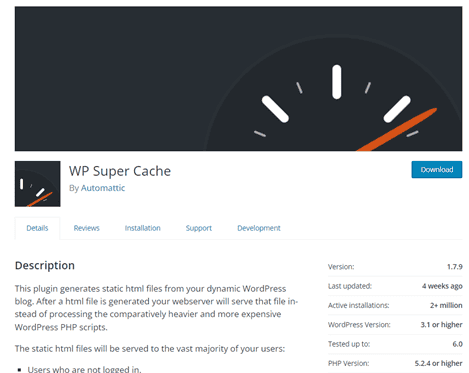
WP Super Cache.

Caching is crucial in improving your site’s overall speed. The basic concept of caching is creating an HTML version of your web pages. This shall serve more quickly than PHP Pages. WordPress which runs on a PHP site is formed by many files which communicate with one another to generate data on your page. So, this could be very hard on your server. All those processes come together to create one static HTML Page so, why not save it and display it quicker?

That’s what the WP Super Cache plugin does, it generates static HTML files from your dynamic WordPress site. After an HTML file is generated your website will serve that file instead of processing the comparatively heavier and more expensive WordPress PHP scripts.

WP super cache plugin

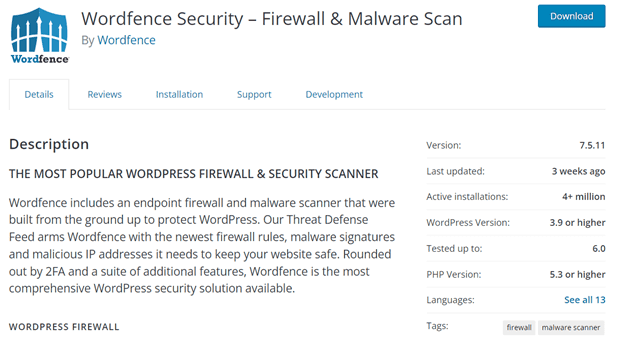
Wordfence Security.

wordfence security plugin

Security is serious business, what you don’t know can actually negatively impact your site. Due to the increase in the use of WordPress, WordPress sites are frequently attacked on a daily basis. Hence, with more active installs and frequent updates, Wordfence Security gained popularity over the past many years till date. This security plugin prevents your site from being hacked, and block potential threats or brute force attack. It filters live traffic and actually verifies your source code integrity. It collects data in real-time visibility into traffic and hack attempts on your website.

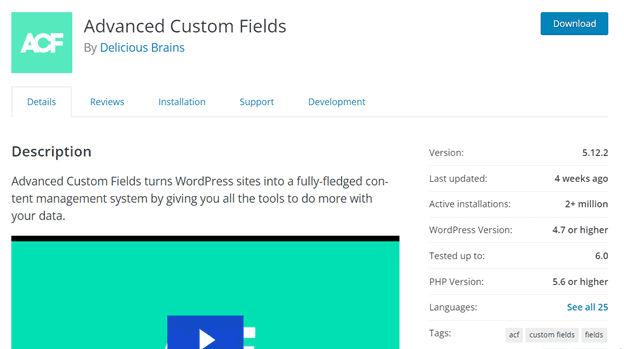
Advanced Custom Fields.

By default, WordPress posts and pages have limited sets of data input fields. But, you may need to collect and display more data than what is available. This is where Advanced Custom Fields comes in handy. Advanced Custom Fields plugin provides both a user interface and programmatic methods.

It helps in creating custom meta boxes and custom fields on any post type. Due to its unique features, it has gained top 1+ million installs and good ratings from users.

advanced custom fields plugin

Elementor Page Builder

An elementor page builder is one of the best free WordPress page builder options. This plugin helps the user in creating beautiful pages. These plugins help you create professional, pixel-perfect websites. Elementor page builder plugin has made the website building process fun and easy. It is also suitable for non-developers and newcomers.

Its flexible and customizable format is a positive side of elementor page builder plugin for your new sites. In 2022, Elementor is one of the leading plugins that has tons of features installed in it. Hence, elementor page builder plugin is the most popular WordPress plugin.

Contact Form 7.

The website is incomplete without a contact page. A contact page basically contains a contact form. WordPress has many contact form plugins among them the most simple, popular, and smart one is Contact Form 7.

Contact Form 7 is the most beginner and friendly contact form plugin for WordPress. With over 1 million active users it is one of the most popular contact form plugins for WordPress. It manages multiple contact forms. further, you can customize forms with simple markup.

Yoast SEO.

SEO (Search Engine Optimization) is the process of getting traffic from organic or natural search results on search engines. Major search engines such as Google, Yahoo, and Bing. The higher your page rank in the result the better, as it allows more people to find you. Thanks to the Yoast SEO plugin, all the components are compiled into one convenient package making it easier to SEO.

It provides guidance for the setting of this plugin and for pages and posts accordingly. Due to its full package and free price, it has gained 1+ million active installs. Also, updates of this plugin come frequently.

WooCommerce.

WooCommerce is a free and popular eCommerce plugin that allows you to sell anything through WordPress-powered site. Built to integrate seamlessly with WordPress, WooCommerce is the world’s favorite eCommerce solution that gives both store owners and developers complete control.

With endless flexibility and access to hundreds of tree and premium WordPress extensions. WooCommerce now powers 30% of all online stores more than any platform.

In conclusion, we’d like to share an article on why to use WordPress in 2022 too. Furthermore, you’re always welcome to drop down your queries in the comment box below.

TOP TRENDS IN WEBSITE DEVELOPMENT IN 2022

Web development is advancing in today’s world with newer and modern technology. Developers are discovering newer websites in an innovative way. The world is changing as technology is changing which can be witnessed easily in web development trends too. Also, In today’s era, web developers are trending as the need for developers is among the highest. Likewise, New updates are emerging leading to advancements in technology and web development. Now, let’s look at some of the top trends in website development in 2022.

Top Trends in website development in 2022

  1. Javascript
  2. Progressive Web apps
  3. Voice search optimization
  4. Artificial intelligence
  5. Virtual Reality
  6. Blockchain technology
  7. Cloud computing
  8. Web assembly
  9. Dark mode experience
  10. Cybersecurity

Javascript

Javascript is one of the most popular programming languages used by programmers to develop apps. Java is said to be the easiest programming language to learn. Hence, it can be easily learned by anyone who is new to coding. By now, Javascript is everywhere and is used by every developer. It is used by websites to script web pages.

Javascript is the most flexible programming language on the web. However, It is quite different from HTML as Java is a scripting language whereas HTML is a markup language. Let’s look at some of its benefits in today’s era: –

BENEFITS:-

  1. Java is easy to learn it is flexible and can be learned even by newcomers too.
  2. Java runs on the client’s browser and is interpreted language that increases its speed and reduces time compared to another programming language.
  3. Moreover, Java has a simple structure and is also feasible which makes learning this language easy and simpler.
  4. Java is among the popular programming languages. Various applications like Spotify, Amazon, Google, etc use Javascript.
  5. Java is versatile as it is capable of both front-end and back-end development like Node JS and Angular JS.
Javascript

Progressive Web apps

A progressive web application is application software that works on any device with a normal browser. It includes programming languages like HTML, CSS, Javascript, etc. Furthermore, It is also a website that can operate on web pages as well as mobile apps.

PWA behaves as a mobile app and companies that have launched PWA have seen impressive results. For a PWA to be good it works fast, work on any browser, and further provide an offline experience.

Let’s look at some of its benefits: –

  1. PWA works on any device and any browser with a flexible screen size.
  2. It increases user engagement, and conversion rates and provides impressive results.
  3. Likewise, It can install faster, and automatic update is its key feature.
  4. PWAs focus on users’ needs and understand the business impact.
  5. Also, It is easily installed without depending on app stores or Play stores.

Examples: Starbucks, flutter, and so on are examples.

A progressive web apps trend

Voice search optimization

Voice search optimization is searching for results according to the keywords and phrases recognized by the voice assistants. It is one of the easiest and most reliable methods to get information simply by speaking to your device.

Voice search is one of the most prudent ways to optimize your content. It is the most popular and simpler way to search with your keywords and phrases. It further improves your SEO and also changes the way your brand does SEO.

The volume of voice searches is increasing day by day and is expected to rise more in the upcoming years. We all are already using voice search as it is available on every modern device. Some of the developers that use voice search are Google Assistant, Alexa, Siri, etc.

Benefits:-

  1. It answers your questions quickly and clears all your queries
  2. Voice search optimization brings lots of changes to the SEO of your brand.
  3. Also, It is believed to take care of your mobile UX
  4. It is beneficial to the ones with hearing impairments or sight problems.
  5. Voice search is more efficient than typing a long text.
Voice search optimization

Artificial intelligence

Artificial intelligence is the future of the virtual industry. By now, AI has been deployed in numerous sectors like finance, education, health, transportation, and so on. It has helped us a lot with our day-to-day activities and also in connecting with people from all over the world.

Voice assistants like Google Assistant, Alexa, and Siri are a common examples that has been using AI. Along with that, our device includes face recognition and smart keyboards that is the part of AI. The majority of people might not be aware of this, but we have been using Artificial intelligence in our daily life while using electronic devices.

Benefits: –

  1. It cuts off the overall time taken to perform tasks and operates 24/7
  2. AI is easy to use and has a simple structure that is easily understood by anyone.
  3. It has the ability to provide services to differently-abled people as well.
  4. AI has assisted developers in creating and defining more intelligent and powerful computers.
  5. AI is able to handle information better than humans and introduce innovative ways to solve problems.
Artificial intelligence

Virtual Reality

Virtual reality is a computerized experience with 3D scenes and images that makes the users feel entertained. It is completely different from the real or might be similar to it. Virtual reality creates a virtual environment where people interact with computers similar to interacting in the real world.

The craze for virtual reality is increasing day by day and can rise more in the upcoming years. It is one of the most important web development trends of 2022. VR is all about creating 3-dimensional objects through the use of lights. It is simulated, computerized, and Augmented reality.

Benefits:-

  1. It increases creativity and expands learners’ knowledge.
  2. Also, Users can experiment with a world completely different or similar to the real world.
  3. VR makes learning easy, comfortable, and simple.
  4. It is important assistance to web development and further provides digital opportunities to the users.
  5. It saves time, and money and assists the user in exploring the virtual world and interacting with virtual objects.

Oculus is one of the famous VR in 2022.

Blockchain technology

Blockchain technology is a technology that facilitates the process of transactions that helps to reduce the risks of cyber crimes. This technology offers tons of benefits that make the process of transactions safe and secure.

It allows the development process much easier and faster. Anti-money laundering tracking systems and cross-border payments are some of the blockchain applications. Blockchain technology also blocks the stores of transactional records.

Benefits: –

  1. Blockchain technology enhances security as your data is confidential and crucial.
  2. It reduces costs and abolishes financial services that use traditional techniques.
  3. It provides better transparency and also improves speed and visibility.
  4. Blockchain is decentralized, there is less chance of committing mistakes.
  5. It works on the set algorithm that makes it flexible and allows secure transactions.

Examples of blockchain technology are: – Visa, Walmart, Amazon web services, etc.

Cloud Computing

Cloud computing refers to the use of remote servers to store, manage, and process data. It started to emerge and rise rapidly as a trend during the pandemic as almost every company shifted towards working remotely. Cloud computing provides better flexibility and faster innovations.

It can use disaster recovery services that help businesses recover from disasters quickly. Cloud providers are also experts in offering various security features.

Benefits:-

  1. It is cost-effective and helps to reduce costs. Hence, a business no longer has to invest a large sum of money on hardware and software as they can access cloud-based applications.
  2. Cloud computing provides flexibility and is highly scalable through which businesses can scale up or down their usage.
  3. It provides a secure environment to the users compared to traditional IT infrastructure as it has enhanced security features viz. data encryption.
  4. Cloud computing offers benefits to the environment as well as helps businesses to reduce their carbon footprint.
  5. It helps to improve the experience of customers while using cloud-based applications.

Netflix, Google Drive, and Amazon web services are among the popular users and providers of cloud computing.

Web assembly

Web assembly is an innovative code that can run in modern web browsers and is a low-level assembly-like language. It is also known as Wasm and is used for enabling deployment on the web for client and server applications and for programming languages. It is available in a high-level language. Wasm provides execution of any code with faster performance.

However, it cannot replace Java script. Studies and research conducted reflect that Wasm is faster than Javascript on desktops and smartphones. Wasm is the new way to run code on the web. However, it is still in its development process & indeed is the future of the web.

Benefits:-

  1. The size of the code is small which makes it faster and more efficient to load and execute its work
  2. It is able to execute on modern web browsers without any issues and is in fact perfect for mobile browsing.
  3. It supports multiple programming languages and offers the benefit of easy debugging.
  4. Wasm is secure, doesn’t break the web & is readable too.
  5. Similarly, It can execute its code at near-native speeds.

Figma, Autodesk, & google Earth are examples that use WebAssembly.

Dark mode experience

We all are already certain about using Dark mode on our devices and browser. It was introduced a few years ago and is one of the major considerations today. The majority of people prefer browsing in dark mode compared to a light theme. The dark mode is easy on the eyes and consumes less battery for the devices.

The dark mode is unavoidable for web development in 2022 and in the upcoming years too.  A darker interface is especially a benefit to users who work at night for a longer period of time.

Benefits:-

  1. It reduces eye strain and lessens the risk of problems in your eyesight.
  2. The dark mode is useful to your devices as it saves battery and prolongs battery life.
  3. There is less emission of blue light which keeps your eyes healthy.
  4. The dark mode gives your browser look appealing and amazing compared to the bland white look.
  5. Studies reflect that it is useful for people with light sensitivity and visual impairments.

GoogleInstagram, Twitter, Youtube, &gmail are among the popular apps that enable dark mode.

Cyber security

Cybersecurity is the protection of hardware and software or devices themselves from cyber threats. It is useful to protect devices and data in it from unauthorized access. Further, It is useful to prevent your device from attacks. As technology is advancing day by day, cyber threats are increasing too.

Various companies without proper encryption have been facing cyber-attacks leading to the loss of data and the leak of personal information of clients. Hence, Cyber Security is a way to prevent technology from hacking, phishing attacks, etc. It is another interesting trend in today’s digital era for protection and device security.

Benefits: –

  1. It provides protection against external and internal threats.
  2. Cyber Security allows employees to work safely.
  3. Moreover, It creates trust among people to continue to rely on your services.
  4. It prevents various financial threats and prevents websites from crashing.
  5. Likewise, Cyber Security safeguards the personal information of the client and the business and provides digital protection

McAfee, IBM, and Fortinet are examples of companies with the best cyber security.

Please feel free to use the comment section to express your view. And don’t forget to check our article here!
Importance of Images in a website

Images do play a significant role to attract an audience to your website. Don’t you skip the contents without pictures? Without any doubt, the majority of people prefer a graphical representation of the content with only text. Studies also prove that 80% of people remember what they see rather than what they read. Image is used for various reasons on a website. For instance, to enhance websites, demonstrate or explain any part of the text, present informative text in a more understandable way, and so on. Images act as a medium to transfer data easily to the viewer. This further makes content more appealing and compels the audience to stay on the site for a longer period of time. You may take the example of Google Lens to analyze how visual search ranking works.

By now you already have some ideas about the role of images in a website. So, let’s overlook some of the points to get detailed knowledge on the topic.

Following are some of the important of images on a website: –

Images Improve user’s experience

As mentioned above, Images present information in an appealing and understanding manner. This improves the user’s experiences as they get what they wanted. By improving users’ experience, visitors stay on the site for a longer period of time.

This will further increase organic web traffic and people click on your site more often.

images improve user's experience

Draws attention and attracts customers

Images improve the quality of the content. Improvement in the content compels the audience to stay on the site for a longer time. It does have great value when it comes to presenting the information. It makes the content more understandable and valuable.

Using high-quality images related to the context will reflect what your site is all about. It avoids your site to look messy and unprofessional. Further, Image optimization leads to website content optimization.

atracts customers

Improves visual search ranking

Using meaningful images related to the content plays an important role in conveying messages which increases visual search rankings. It creates an immediate impression of your site on the audience.

This will further help in maintaining SEO. Hence, images are important to increase the ranking in search results. As it also brings positive changes to your web traffic to your site.

improves visual search rankings

Brings life to your content

Images on your website make the text easier to understand. It also your website look more appealing and brings life to the content. It captures visitors’ attention especially when they show up on search results.

Properly labeled images are the life of the content, product, or goods. Images should be related to the text or the content on the website. It gets more views compared to the content with only texts and no graphical representation of the content.

here are some of the ways for optimizing images.

Increases dwell time

It is an integral part of the content of your website. As it makes your website look more appealing and higher-quality images increase user engagement.

It also brings products and services to life as this impacts the emotions of the viewers. A properly labeled image attracts the viewers and it gets more views compared to dull texts.

increases dwelling time.

If you have any questions, feel free to let us know in the comment sections below. And don’t leave without checking our article on Elementor!

A complete guide to building a WordPress Website

Hey! Don’t you wish to create a website without any knowledge of coding. Well! Here’s a solution to it. Creating a website in today’s digital world is not a big deal, with platforms like WordPress, Squarespace, and Wix where we can easily create websites. In this blog, I will share a quick and simple guide to creating a WordPress website.

So let’s move toward getting to know more about WordPress.

Let’s take a brief look at WordPress. There are numerous ways to build websites, but why is WordPress the ideal option to develop websites among the developers?

What exactly is WordPress, & why should you choose it?

WordPress is the most popular CMS globally used to create web pages, and posts and publish them. In fact, it powers almost 40.6% of the active internet base. WordPress offers tons of advantages to its users along with a variety of themes and plugins.

The most important feature is that WordPress is absolutely free & secure to use. In other words, WordPress is only a few clicks away to install and use freely.

Here are some of the key attributes of WordPress:

  • Cheap and cost-effective
  • Multilingual
  • It’s easy to understand
  • Extra versatility is its key feature.
  • It provides quality security & is fast and secure
  • 55,000+ plugins for impeccable site experience
  • Over 3,000 beautiful and professional themes
  • SEO Friendly
  • Mobile responsiveness

But wait,

According to what is mentioned above, WordPress is FREE but you’ve certainly heard about people paying for the websites they’ve built.

To clarify, let’s talk about the differences between WordPress.com and WordPress.org.

WordPress.com vs. WordPress.org

The main difference between WordPress.com and WordPress.org is who is responsible for hosting your website.

Firstly, WordPress.org is a free platform to create and maintain websites. It is a highly recommended platform that allows you to host your own website.

However, WordPress.com is another option but is slightly different. It is a web-based platform that will assist you in hosting your sites. Each element is handled carefully by WordPress and is in fact easier to start.

Hosting companies such as Bluehost or SiteGround are just as easy to use as WordPress.com, but they are less expensive and provide more flexibility.

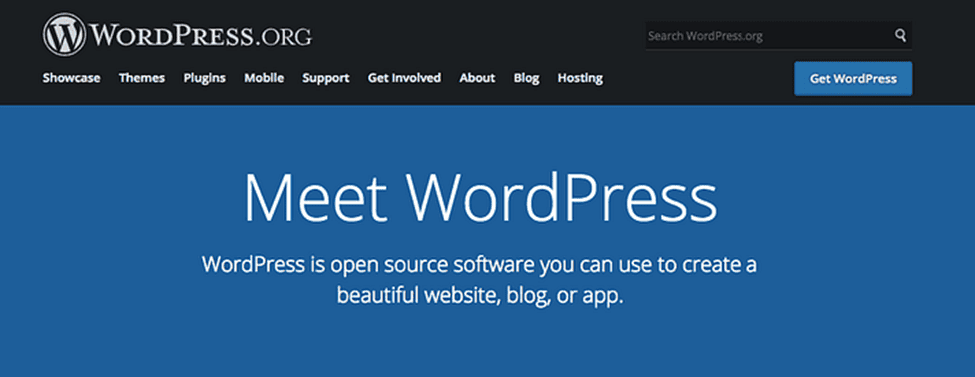
Throughout this article, we shall talk about WordPress Software that is available here WordPress.org

home page of wordpress.org

Moving on, let’s take a look at the fragments of building a WordPress website from scratch.

Step 1:- Register a domain name

Prior to learning about the creation of a WordPress website for starters, you’ll require a domain name for your website. A domain name refers to your website address on the internet. It assists in attracting customers and increasing brand awareness.

In simpler words, your website’s permanent internet address is the domain name. To elucidate it, let’s take a look at the following example where ourvirtualtribes.com is the example of the website’s domain name.

domain name for your website

To acquire a domain name, look for a domain name provider’s website. For instance, Nepal’s official.np domain registration, Gurkha.host, Namecheap, and so forth.

A domain name is similar to your home’s address which justifies your location in the world.

Following are some tips you can use while choosing a domain name for your site:-

  • The domain name must be related to your site content.
  • Try considering keywords related to your business to sound good. For example, if I create a travel blog, I can include keywords like “food”, “foodie”, etc.
  • Keep it in a nutshell.
  • Select an appropriate extension like .com, .org, .net, and more as they convey some specific meaning; for instance, .com is used for a commercial while .org is for organizations. So, choose based on what your website is all about.
2. Buy a web hosting

Web hosting is an engine that drives your website and is a place where your website’s files live. Anyone willing to build a website must have web hosting if you want others to access your website.

It’s easy and simple to purchase web hosting as the efforts of the companies make the process easier and simpler. The best & suitable way to build a WordPress website is via the hosting service provider under WordPress’s recommendation.

While exploring web hosting providers viz. Bluehost, Siteground, and Dreamhost you can learn about other hosting services too like:-

  • Shared
  • Managed WordPress
  • Virtual Private Server (VPS)
  • Dedicated
  • Cloud

Hence, You can select any one of the above hosting plans according to your website needs after reviewing your need for memory, space, and other resources along with your budget.

Moreover, you can explore other web hosting companies from Nepal here!

3. Install and configure WordPress

After purchasing your domain name and web hosting, you’ll receive an email from the support team along with your details that can be used to access your profile and start working on your website.

Many hosting providers offer quick and simple one-click WordPress installations or manual ones that make things comfortable.

Let’s take an example, If you choose Bluehost it shows a simple wizard to move with the installation.

  • In cPanel, scroll down and hit the “WordPress” icon.
  • You will see the Quick Install option to download WordPress. Click on “Get started”.
  • Next, select your domain name. It’s where your WordPress site will be hosted. Click “Next”.
  • Enter your site name, admin password, and admin username. Click on “install” to continue.
  • Once your installation completes, it will show a message – “Installation complete”.

After you’re done, you can start working on it picking pieces of functionality and designs for your WordPress site.

Now, Click on the link provided to find your WordPress login URL along with the password.

Log in with your username and password to start working on your new website.

However, If you need to install WordPress manually, it might take some time but it’s easy. You may check out the official guide by WordPress.org on how to install WordPress.

Basically, you’ll need to download WordPress, upload your files to the domain name folder, create a database, point your browser to the domain name and follow the instructions.

You’re done! You have created your first WordPress website.

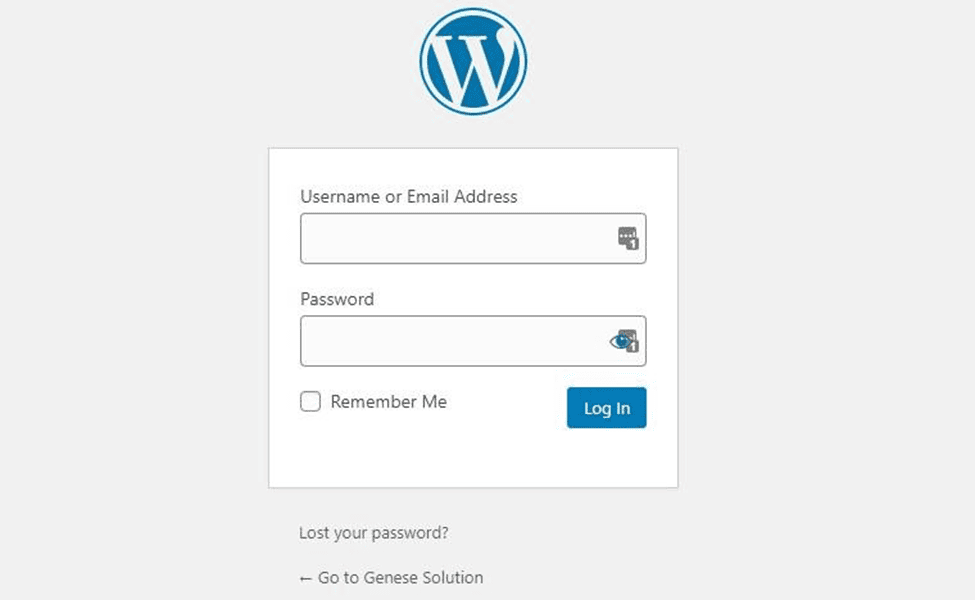
You can now head over to the WordPress login page & can always access your dashboard by going to:

yourdomain.com/wp-admin

You can log in to your WordPress site using the admin username and password you entered earlier.

login interface of website
Login Interface

After entering your log-in data, you can see the main interface of WordPress.

main interface of wordpress
Main WordPress interface

After this process, let’s choose a design for your website.

Step 4:- Choose a WordPress theme and plugins

Now, let’s move to the most exciting part i.e. design & appearance.

The best part here is that you can customize everything in WordPress as you wish. You’ll have to make efficient use of WordPress themes or Templates.

In simpler words, WordPress software provides users with a pre-designed look for your website its posts, and pages. It is the main design layout or the integral part of your site’s outlook.

themes in appearance section
Themes section of wordPress

Where to find the best WordPress themes?

The popular and easiest place to get free Themes for your site is from the official themes repository. There are over 7700 themes to choose from and the best part is all of them are free to boot. Thus, you can set up a WordPress site to look beautiful for absolutely free.

Likewise, you can install plugins into your website to enjoy benefits like better security, SEO, contact forms, Google Analytics, and more. Currently, WordPress provides over 55,000 plugins completely FREE at your disposal.

Plugins for WordPress
Plugins
Step 5:-Add Content to Your Site

WordPress comes with two default content types called posts and pages. Posts appear in reverse chronological order and pages, on the other hand, are meant to be static. For instance, Your about page, Contact page, Privacy policy, etc.

How to Create Posts and Pages in WordPress?
add posts

Post and Pages creation are similar to each other.

first, select the Posts/Pages option on the sidebar. This will bring you to the page where all your posts/pages will be listed.

Now to create a new post or page, just click on the ‘Add New’ button at the top.

This will drop you to the WordPress post editor. Here, you can include all kinds of content including text, images, or other graphics which is fairly intuitive.

After you’ve completed preparing your content, simply click on the ‘Publish’ button located in the right corner.

Step 6: Customize your website
general settings to add URL, email,  timezone
General settings in WordPress

Along with theme customization, you can further customize your website in numerous ways. Let’s take a brief look at some of them:-

Initially, let’s start by customizing your site title. From your admin dashboard, select Settings > General. Here, add your website title and tagline. You can also toggle other basic site information like your URL, email, time zone, and more.

Further, let’s customize your reading sections. Under Settings > Reading, you can change your homepage to a static page.

Reading section in WordPress

Now, To create a WordPress menu, go to Appearance>Menus from your WordPress dashboard.

appearance section in wordpress
Step 7: Managing WordPress Security

Now that you’ve completed creating your WordPress website and adding content to it. you’re almost done. however, there are a few essential things you must work on immediately. let’s make your website secure.

Here are a few easy steps to make your website more secure:-

  1. Keep WordPress Updated
Wordpress new updates
  1. Keep your Themes and Plugins Updated
wordpress plugins update
  1. Enable SSL
  1. Backup your Websites Regularly

In addition, the following are some of the best WordPress plugins for secure websites:-

Step 7: Optimize your content for SEO and performance

There are some Seo plugins like Yoast SEO to optimize your content and further increase visibility. Moreover, Optimize permalinks, headings, titles, subheadings, videos and images, and other media.

Likewise, Speed plays a significant role to make the path to the success of your website.

Certainly, none of us like to wait. Hence, don’t let visitors slip off your site due to poor page loading speed.

Enable browser caching to improve your website’s performance. Well! Browser caching is the process of temporarily storing your website’s data on your visitors’ browsers. In this way, your content doesn’t require to be sent from the web server for it to appear in the browser, which increases the website speed.

Install and activate a caching plugin like W3 Total Cache to enable caching for your website.

Wrapping Up

Congratulations! You’ve successfully learned how to start a WordPress website!

Now you know the process is simple and easy. The great thing about WordPress is that even absolute beginners will be able to have a site of their own in no time.

We hope this article made the whole process clear to you.

But wait!

you’ve learned how to create a WordPress website, but don’t you like to extend your knowledge on WordPress? well! here’s an article on the 6 Most Important Reasons to Use WordPress in 2022.

If you have any questions, feel free to let us know in the comment sections below.👇

ELEMENTOR

Elementor is known as the best plugin by which we can create pages in WordPress. In simple terms, it is a page builder for WordPress. Elementor is easy to use.

Continue reading